
Heat and hot water is supplied to South Gardens under a district heating network operated by E.ON Energy.
Two gas-fired CHP (Combined Heat and Power) plants each produce 800kW of electrical energy inside the Energy Centre on the corner of Heygate Street and Rodney Road. The waste heat from electricity generation is then used to heat homes and businesses through underground pipes which pump hot water to where it is needed.
The Energy Centre supplies heat to the entire Elephant Park development, including the new Shopping Centre (when it opens). The district heat network has the potential to extend beyond Elephant Park.
In this article:
Underfloor heating
Heating is provided throughout the majority of your home by underfloor heating. This operates in the bedrooms, hallways, kitchen and living room. This is supplemented with an electrically-heated towel rail in the bathroom, where there is no underfloor heating.
Underfloor heating is an efficient way of heating a space and uses lower water temperatures (usually between between 55° and 60° Celsius) than traditional radiators. This makes it ideal for district heat networks.
However, due to the lower temperatues used, it can sometimes take longer to feel the benefit of heating and it can take several ours to make a difference.
It is therefore best to run this type of heating system for a longer, consistent time than radiator-based systems.
Turning on the underfloor heating
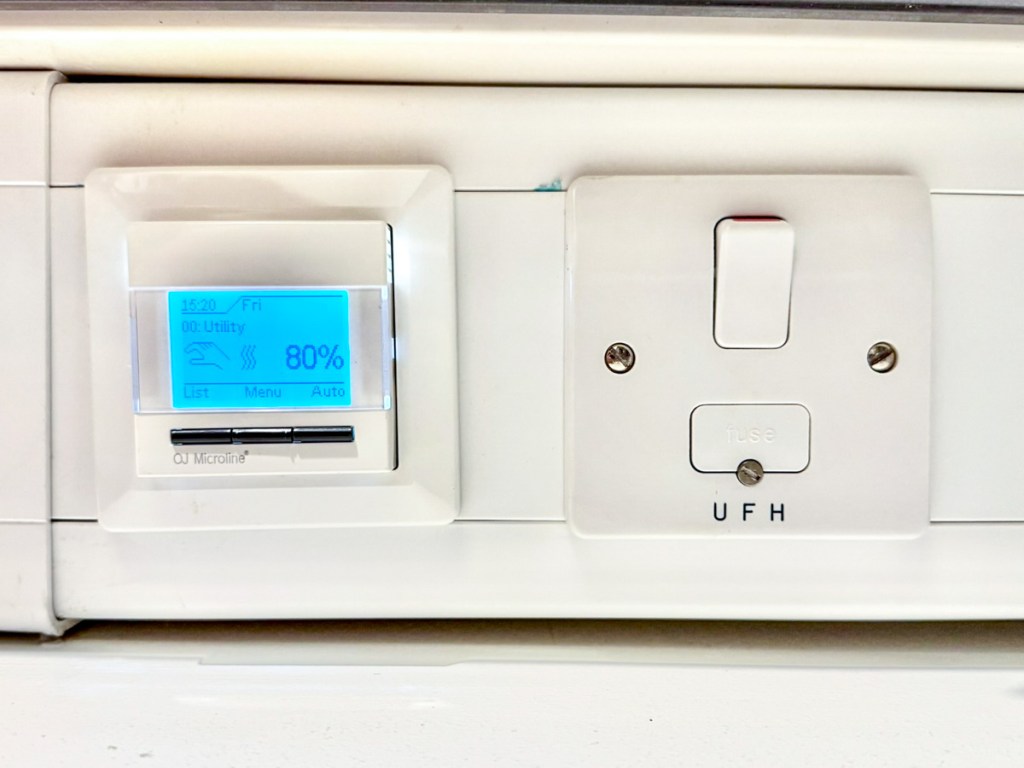
Turn on the white switch marked ‘UFH’ in the utility cupboard.
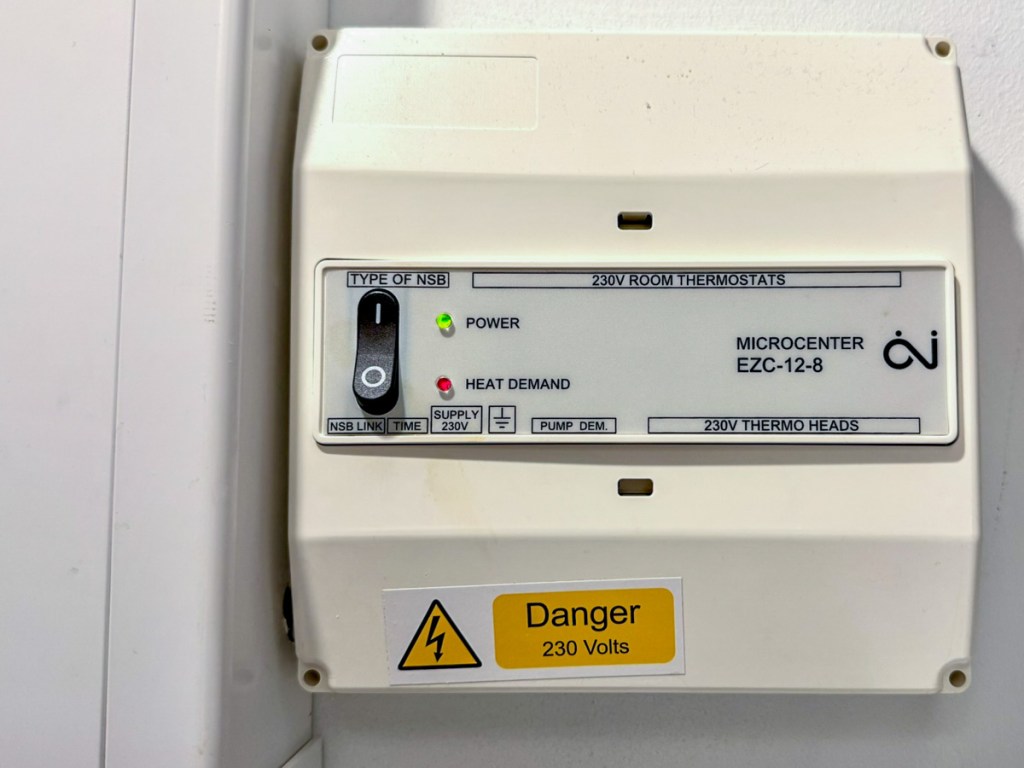
Turn on power to the wall-mounted white box in the utility cupboard. A green light next to ‘Power’ should illuminate when on.
You should also make sure that the thermostat controller, above left, next to the UFH switch, is also switched on. If it is not on, move the slider on the right hand side up to the ‘on’ position. The screen should illuminate when any button is pressed.
The underfloor heating should now be active. If the system is actively heating your flat then a red light next to ‘Heat Demand’ will illuminate. The controller screen next to the UFH switch should illuminate.
Note: hot water will still be available in the kitchen and bathroom taps even if the UFH and room thermostat control switches are off.
Using the room thermostats
You can turn off underfloor heating in individual rooms as well as set the temperature and timing on the thermostat in each room.
Thermostats are the now-discontinued OCC4 model from OJ Electronics.
Turning it on and off
A sliding switch on the left hand side of the thermostat moves up and down. Slide up to turn the thermostat on and enable heating in the room. The thermostat screen should illuminate.
(If the thermostat is already on, simply press any button to illuminate the screen.)
You must also make sure that the thermostat controller in the utility cupboard is also switched on. Without this, none of the thermostats will work.
You must also make sure that the thermostat controller in the utility cupboard is also switched on. Without this, none of the thermostats will work.
Controlling the temperature
You can schedule what temperature the heating comes on and when using the room thermostats. Each room is separate, so you can set different temperatures or schedules in each room.
- Press any button to turn on the thermostat screen.
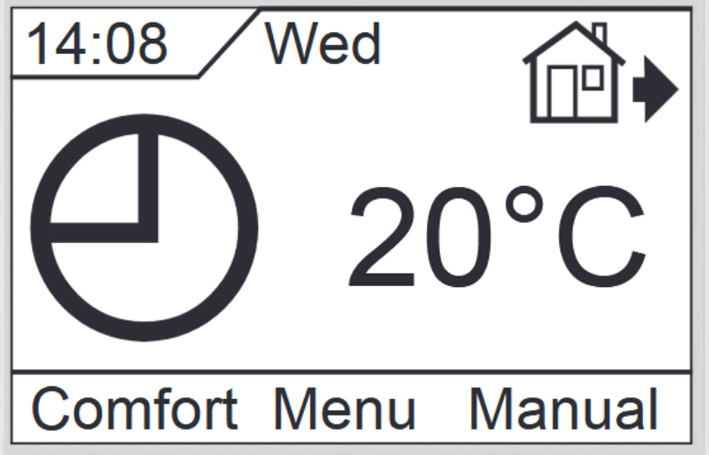
2. Press the middle button to select ‘Menu’
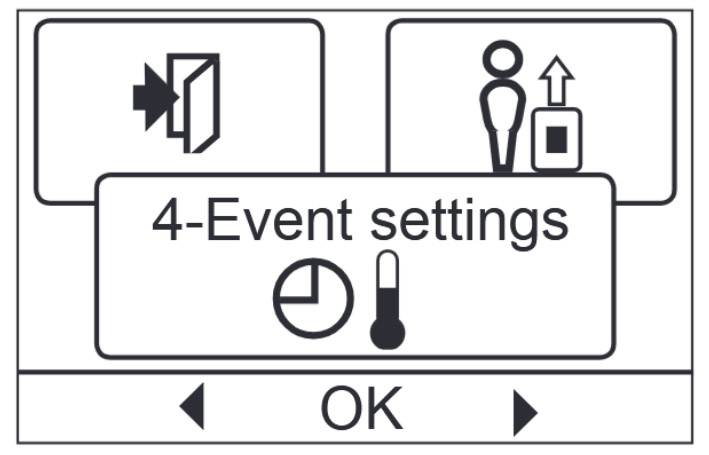
3. Use the left and right buttons to select ‘Event Settings’ which will show four periods: ‘Morning’, ‘Daytime’, ‘Evening’ and ‘Night’.
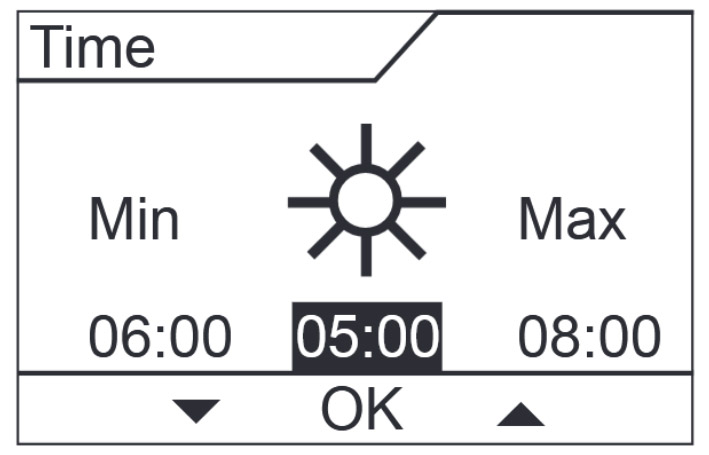
4. Press the middle button to select ‘Morning’ to change what time the heating comes on in the morning using the left and right buttons.
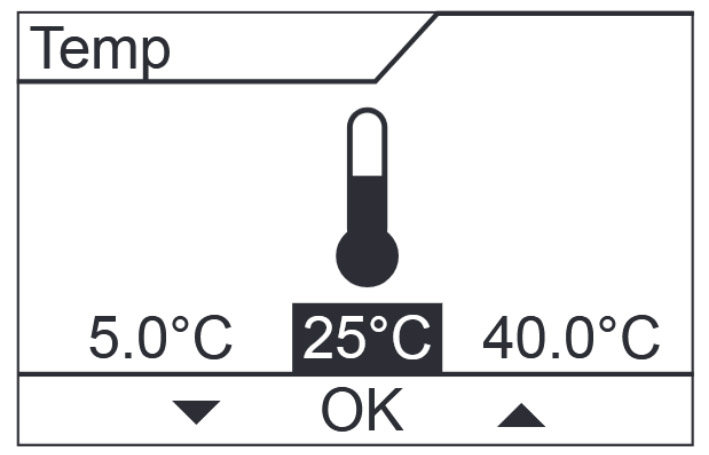
5. Select ‘Temp’ to change the desired temperature, using the left and right buttons to increase/decrease. When the desired temperature is chosen, click the middle button to confirm.
- Repeat steps 4 and 5 for ‘Daytime’ and ‘Evening’.
- After completing for Monday-Friday, you can also select time and temperatures for ‘Weekend’.
More information, including how to set the thermometer clock, change the temperature scale from Fahrenheit or Celsius, child lock and more are outlined in the manual which you can download below:
Troubleshooting
Here are some useful questions to ask when you encounter problems with your heating and hot water:
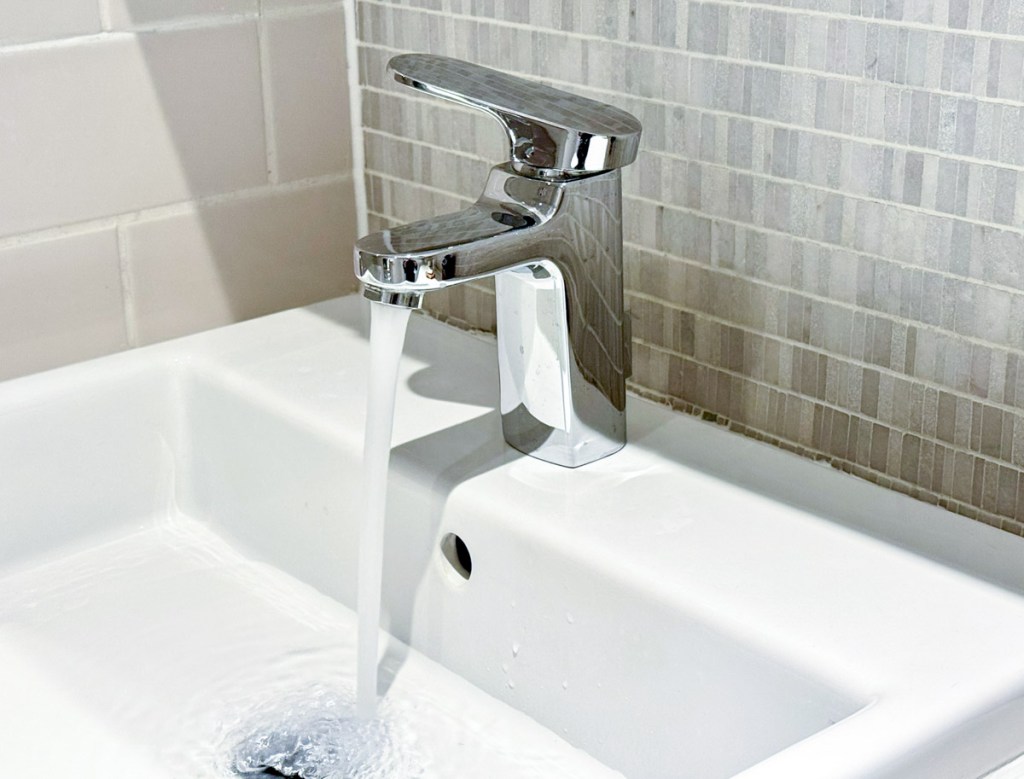
Is there hot water coming out of your kitchen or bathroom taps?
If no, then the issue is likely to do with the supply of hot water to your flat and you should contact E.ON (see below).
Is the switch labelled ‘UFH’ in the utility cupboard in the on position?
Is the power control unit in the utility cupboard turned on? (A green light should illuminate.)
Does the power control indicate there is heat demand? (A red light should illuminate)
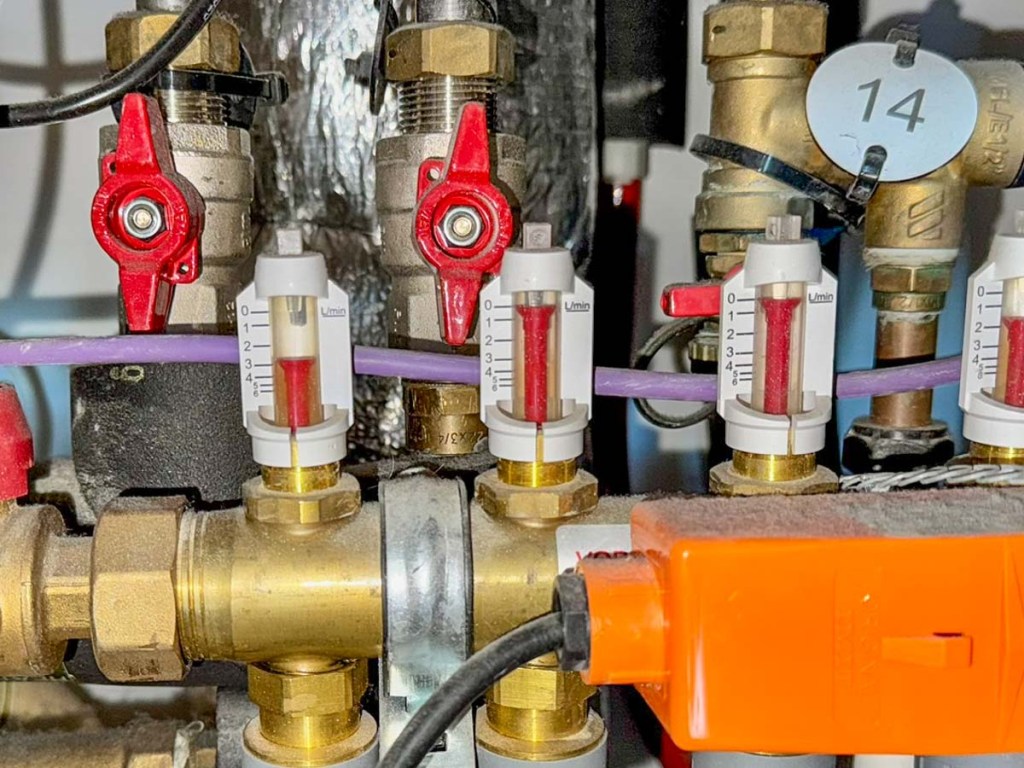
Are the red flow gauges down at a level below zero?
Is the thermostat control unit in the utility cupboard turned on? (The screen should illuminate if any button is pressed.)
Does it show ‘100%’? If no, try resetting the thermostat controller (see guide below).
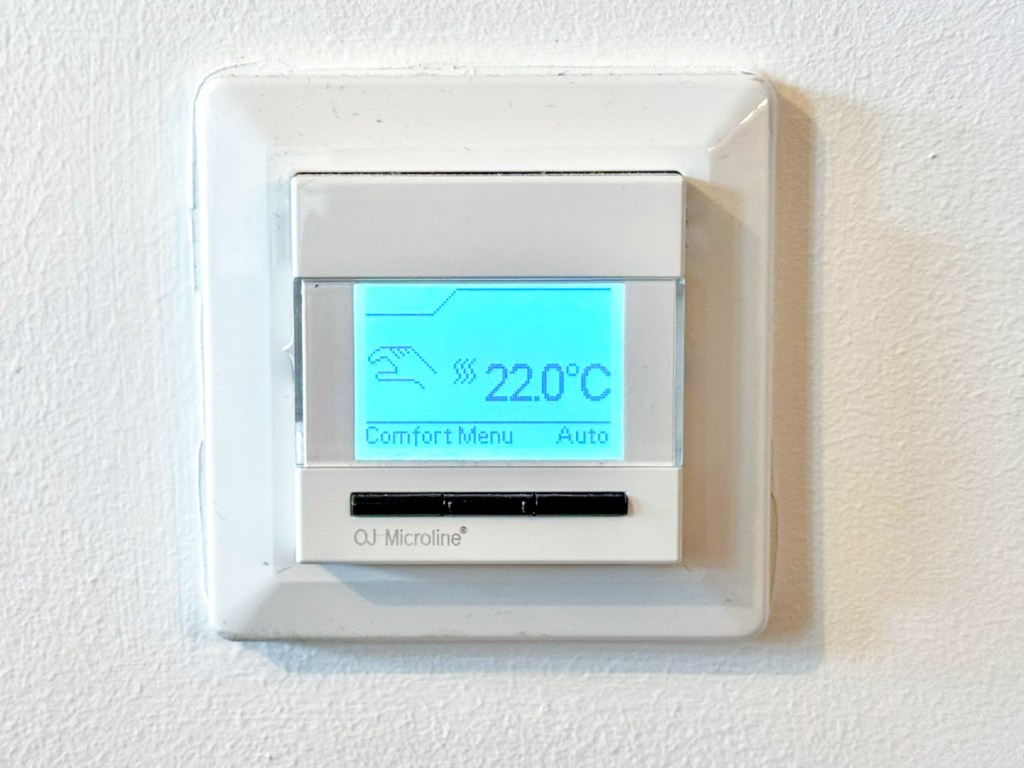
Are the in-room thermostats powered on? (The screen should illuminate if any button is pressed.)
Do the in-room thermostats show three vertical wavey lines to indicate they are drawing heat?
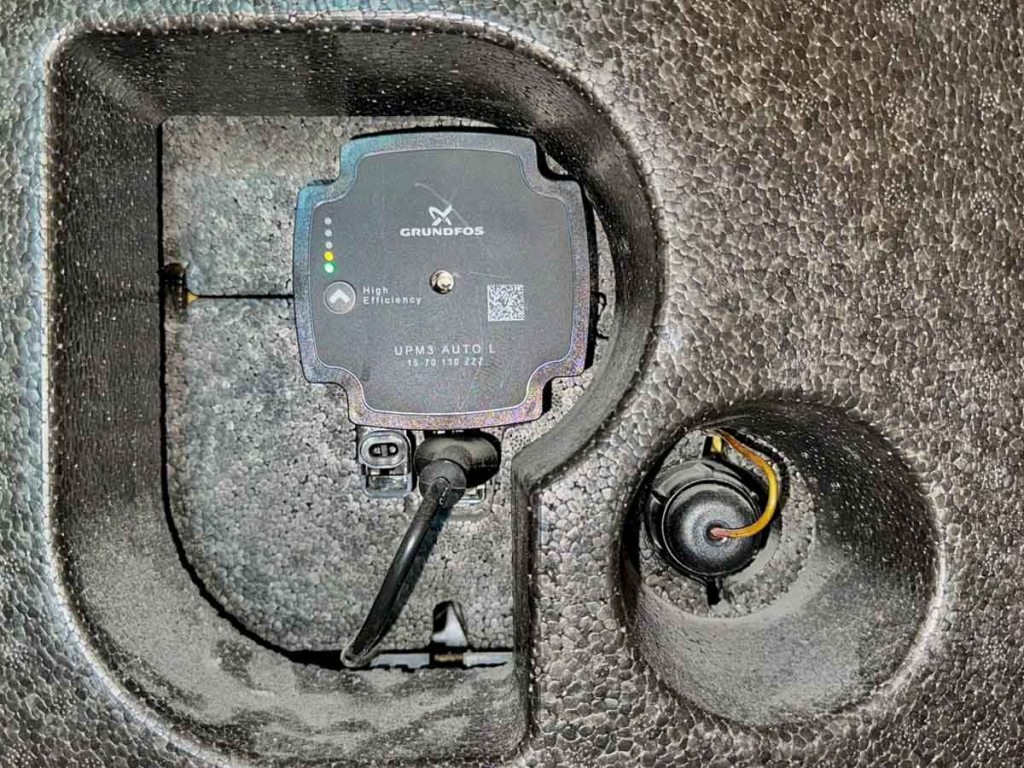
Is the pump light on?
Common error codes
If a thermostat displays the message ‘E2 external floor sensor error‘ simply click menu and select ‘Engineer Settings’. Then select ‘Application’ and ‘Room’ before returning back to home.
How to reset the thermostat controller in the utility cupboard
If the thermostat controller in your utility cupboard displays the following message: “Please select schedule for this thermostat” then you will need to follow the below instructions to reset it.
- Click ‘OK’ for the initial message
- Scroll through the list of zones and select ‘Utility’
- Click ‘OK’
- Select ‘Exit’
- Click ‘Menu’
- Select ‘Event Settings’
- Select ‘Utility’
- Scroll up/down and select ‘Mode’
- Select ‘Regulator’ and click OK
- Select ‘Exit’ which will take you back home
- Click ‘Menu’
- Select ‘Event Settings’
- Select ‘Utility’
- Select ‘Mon-Fri’
- Select ‘Morning’
- Click ‘OK’ when it shows you a time
- Use the up and down arrow to set the % to 100%
- Repeat this process for all ‘Daytime’, ‘Evening’, ‘Night’ as well as the ‘Sat-Sun’, setting all to ‘100%’
- Select ‘Exit’ to return to home screen
If there is no hot water to your flat
If there is no hot water in your flat whatsoever, including from the kitchen or bathroom taps or shower, then there may be a problem with the supply from the Energy Centre.
E.ON Energy is responsible for the maintenance and upkeep of the infrastructure up to and including the Heat Interface Unit (HIU) in your utility cupboard.
You can use E.ON’s ‘Problem Solver’ troubleshooting tool to try and identify the problem:
If you are experiencing an issue with your heating or hot water supply, you must call E.ON on the number below:
0345 302 4312
Compensation
If heat and hot water is unavailable for 24 hours or longer, E.ON Heat is liable under their Guaranteed Standards of Service agreement which you can read below.
For unplanned interruptions, a compensation of £30 will be credited to your E.ON Heat account for every 24 hour period you are without heat. Maximum compensation is set at £500 per incident.
For planned interruptions (eg. scheduled maintenance), E.ON is only required to give 5 days notice. If you still do not have heat or hot water after 5 days from the start of the interruption period, then E.ON will credit your account with £30 for every 24 hour period, up to a maximum of £500 per incident.
You will only be paid compensation if you called E.ON to register a disruption in service, and your compensation will be calculated from the time you call.
 South Gardens Residents' Association